
If you’ve searched for “world builder Minecraft,” you’ve probably noticed the results are all over the place — a Bedrock command, a Marketplace add-on, a Java Edition mod, and a handful of terrain-editing programs all share the name. That’s confusing if you just want to know how to build faster, bigger, and better in your world.
This guide brings all of it together in one place. You’ll learn what “World Builder” actually refers to in each version of Minecraft, how to turn it on, which tools professional builders actually use in 2026, and how to pick the right one for your project — whether you’re flattening a mountain in Bedrock creative mode or sculpting an entire custom biome in Java.
What Does “World Builder” Mean in Minecraft?
The phrase covers four distinct things, and knowing which one you need will save you a lot of wasted searching:
- The
/worldbuildercommand — a Bedrock and Education Edition setting that lets a specific player place and break blocks even when the world itself is locked. - World Builder mods and add-ons — third-party tools (free and paid) that give you extra building powers beyond vanilla, available for both Java and Bedrock.
- World-generation and terrain-editing software — standalone programs like WorldPainter that let you paint entire landscapes before you ever load the world in-game.
- The general concept of “world building” — the creative practice of designing believable, cohesive Minecraft worlds, which is really what most people mean when they say they want to become a better “world builder.”
We’ll walk through each one, then get into the specific tools worth your time.
1. The /worldbuilder Command (Bedrock & Education Edition)
This is the literal, built-in feature that shares the keyword’s name, and it trips a lot of players up because it isn’t available everywhere.
What it does
In Minecraft Bedrock and Education Edition, every world has an ImmutableWorld game rule. When this rule is turned on, the world is locked — nobody can place or break blocks, no matter what game mode they’re in. That’s incredibly useful for guided lessons, adventure maps, or servers where you don’t want random griefing.
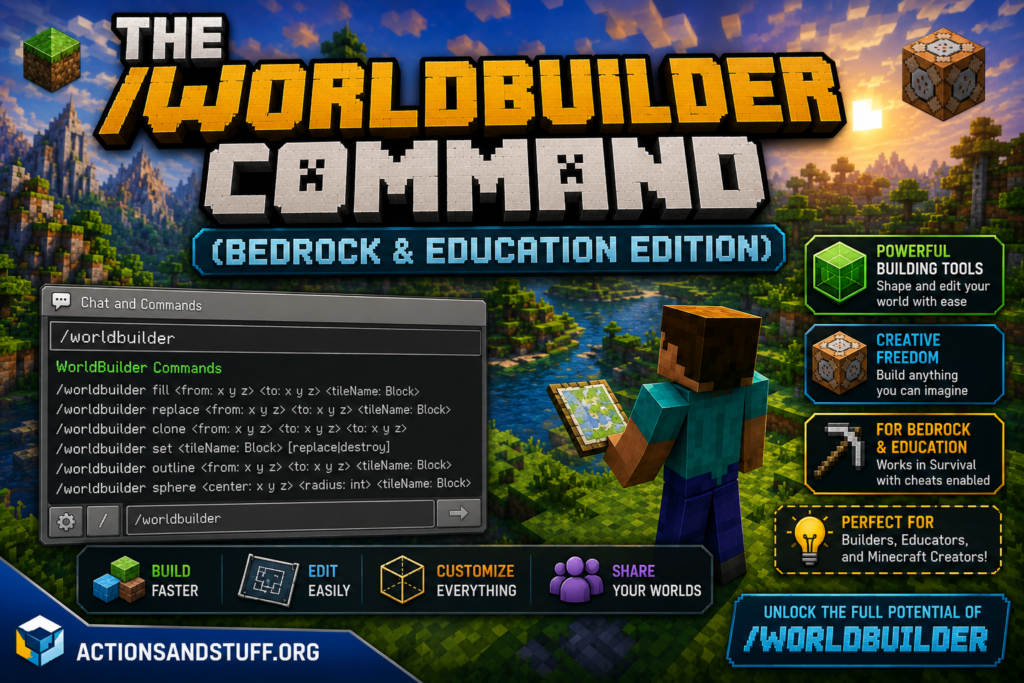
The /worldbuilder command (alias /wb) overrides that lock for an individual player. Giving someone World Builder status means they can still place and destroy blocks even while everyone else is frozen out.
How to use it
- Make sure cheats are enabled in your world settings.
- Open chat and run:
/worldbuilder @sReplace@swith a player’s name to toggle it for someone else, for example:/worldbuilder Steve - Run the same command again to toggle it off.
You can also grant this ability through the /ability command:
/ability Steve worldbuilder true
Where it’s available
The command works on Bedrock Edition (mobile, console, and Windows) and Education Edition. It is not a Java Edition command — Java players achieve the same locked-world effect with the gamerule system and operator permissions instead.
Common use cases
- Classroom builds — a teacher locks the world, then grants World Builder status only to themselves or specific students for a guided activity.
- Adventure maps — map makers lock the terrain so players can’t accidentally break puzzle pieces, while NPCs or hosts retain build access.
- Server events — admins can freeze a public build and let only judges or staff make changes during a competition.
2. World Builder Add-ons for Bedrock Edition
Separate from the command, there are actual downloadable add-ons literally named “World Builder” that you install through the Minecraft Marketplace or as third-party .mcaddon files.
These add-ons typically include:
- A set of tools (usually delivered as special items or a guidebook) that let you generate entire structures instantly instead of placing blocks one at a time.
- Landscape tools for flattening terrain, digging canyons, or raising cliffs in seconds.
- A built-in tutorial book so you don’t need to memorize commands.
They’re aimed squarely at players who find vanilla building tedious but don’t want to deal with Java-only mods. Because Bedrock doesn’t support Forge or Fabric, these add-ons are the closest thing Bedrock players get to a WorldEdit-style experience, just with a friendlier, menu-driven interface.
Tip: Only download add-ons from the official Marketplace or well-known community sites. Bedrock add-ons are just behavior and resource packs — sideloading random .mcaddon files from unverified sources is the same risk as downloading any other unverified software.
3. World-Building Tools and Mods for Java Edition
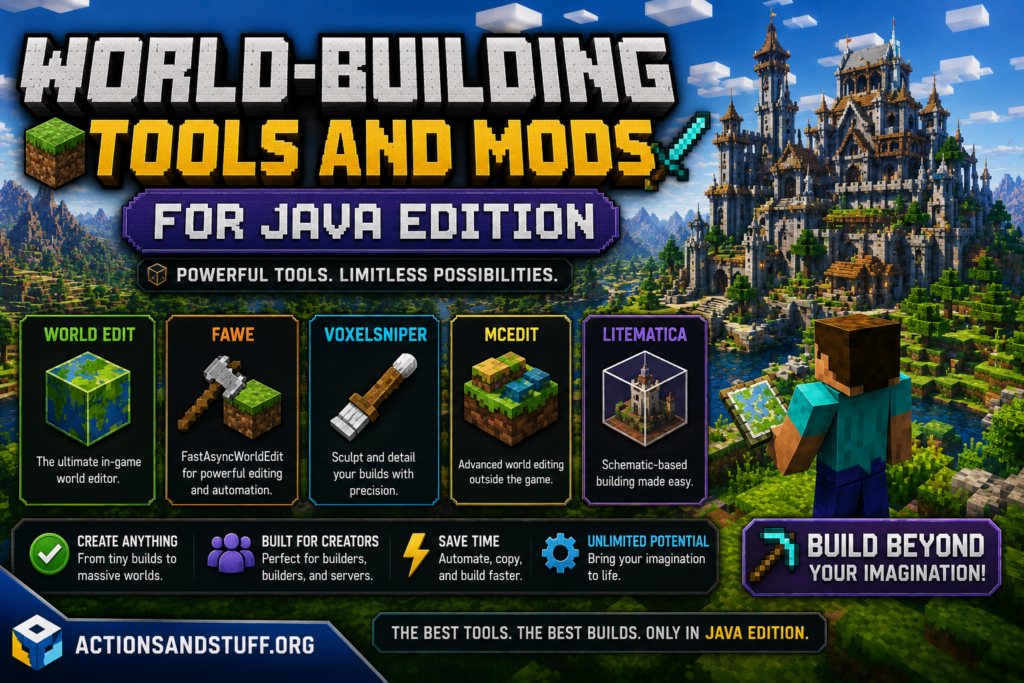
This is where most of the real horsepower lives. Java Edition’s open modding ecosystem means there are dozens of tools built specifically for large-scale world building. Here’s what actually matters in 2026, ranked by what they’re best for.
WorldEdit — the industry standard
WorldEdit has been the backbone of serious Minecraft building for over a decade, and it’s still the first mod most experienced builders install. It works through chat commands paired with a special “wand” item.
What you can do with it:
- Select massive regions and fill, replace, or clear them instantly
- Copy, cut, and paste entire structures
- Undo and redo large edits safely
- Generate shapes — spheres, cylinders, pyramids — with a single command
- Use brushes to sculpt terrain smoothly
Best for: Server admins, large collaborative builds, and anyone comfortable typing commands. The learning curve is real, but the payoff in speed is enormous once you know the basics.
Availability: Works on both Forge and Fabric, and is actively maintained across current Minecraft versions.
Axiom — the modern, visual alternative
Axiom is often described as “WorldEdit with a proper user interface.” Instead of memorizing commands, you get a full in-game menu with smooth brushes, geometry tools, region operations, and a blueprint system for saving and reusing builds.
Best for: Builders who want professional-grade terrain sculpting without leaving the game client or learning a command syntax. It’s become especially popular with content creators and cinematic builders because of how natural the brush tools feel.
WorldPainter — design your world before you even load it
WorldPainter is a standalone desktop application (not an in-game mod) that lets you paint an entire Minecraft landscape — mountains, rivers, biomes, trees, snow — the way you’d paint in Photoshop, then export it as a playable world.
Best for: Map makers and server owners who want to design a custom world from scratch rather than editing an already-generated one. It requires Java to be installed separately and has essentially no in-game learning curve since the whole workflow happens outside Minecraft.
Building Gadgets — survival-friendly building
Unlike WorldEdit or Axiom, Building Gadgets is designed to respect survival-mode rules. It gives you handheld tools — a Building Gadget, an Exchanging Gadget, and a Copy-Paste Gadget — that still consume real blocks from your inventory rather than spawning them out of nothing.
Best for: Players who want faster building without breaking survival integrity, since it doesn’t duplicate or generate free resources.
Litematica — build from a blueprint
Litematica projects a translucent hologram of a saved schematic directly into your world, so you can follow it block-by-block. It’s less about generating terrain and more about accurate, guided construction.
Best for: Recreating complex builds, following community-made schematics, or teaching yourself advanced techniques by copying proven designs.
VoxelSniper — precision terrain sculpting
VoxelSniper is an older but still-respected brush-based terrain editor, popular on servers for smoothing mountains, carving caves, and blending biomes naturally. It’s more specialized than WorldEdit and typically used alongside it rather than instead of it.
Best for: Server-side terrain artists who need fine control over natural-looking landscapes.
Comparison at a glance
| Tool | Platform | Interface | Best For | Survival-Safe |
|---|---|---|---|---|
| WorldEdit | Java (Forge/Fabric) | Commands + wand | Large-scale editing, servers | No |
| Axiom | Java (Forge/Fabric) | In-game GUI | Visual sculpting, cinematics | No |
| WorldPainter | Standalone desktop app | Paint-program style | Designing worlds before play | N/A |
| Building Gadgets | Java (Forge/Fabric) | Handheld tools | Survival building | Yes |
| Litematica | Java (Fabric) | Hologram overlay | Following schematics | Yes |
| VoxelSniper | Java (server plugin) | Brush commands | Natural terrain sculpting | No |
| World Builder add-on | Bedrock | Item/guidebook | Marketplace-friendly building | Depends on add-on |
/worldbuilder command | Bedrock / Education | Chat command | Locking/unlocking build access | Vanilla feature |
How to Install Building Mods (Java Edition)
If you’re new to modding, here’s the short version:
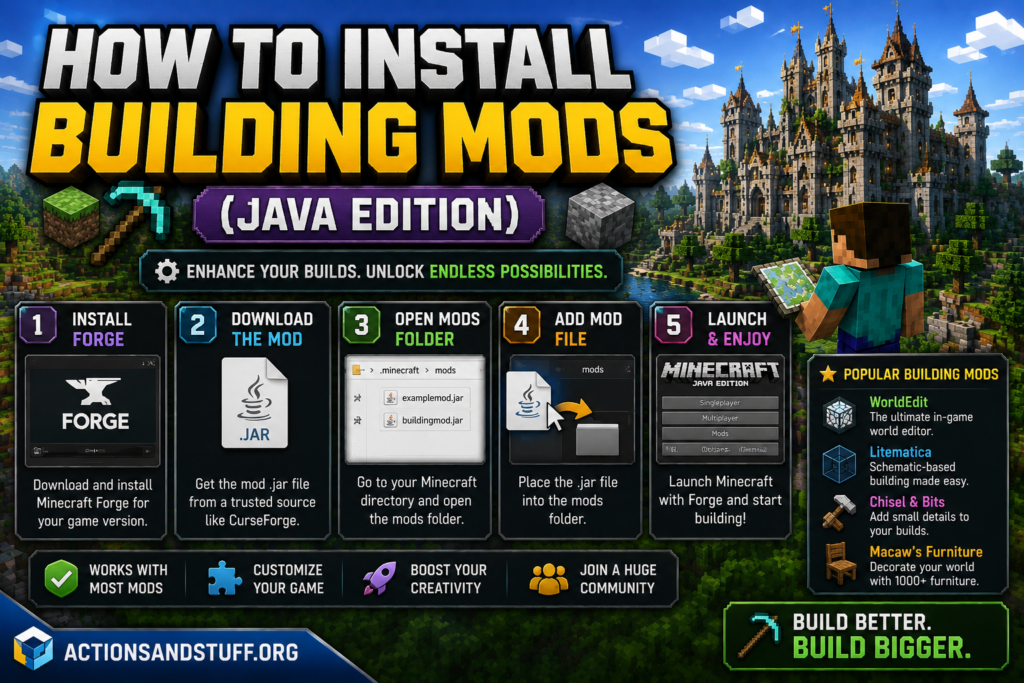
- Pick a mod loader — most world-building mods support Forge, Fabric, or both. Fabric is lighter and faster; Forge has a larger overall mod library. Check each mod’s page for compatibility before choosing.
- Install the loader for your Minecraft version from its official site.
- Download the mod from a trusted source like Modrinth or CurseForge — never a random third-party download link.
- Drop the
.jarfile into yourmodsfolder (found in your.minecraftdirectory). - Launch through the modded profile in the Minecraft launcher.
Always match the mod version to your exact Minecraft version. A mod built for 1.20 won’t necessarily work on 1.21, and running mismatched versions is the most common cause of crashes.
Performance Considerations
Not every building tool is “free” performance-wise. Static decoration mods add almost no overhead once objects are placed. Terrain-editing tools like WorldEdit, Axiom, and VoxelSniper can cause noticeable lag spikes during large operations, because the server has to recalculate every affected chunk at once.
If you’re building on a multiplayer server:
- Test large edits in a private or creative world first.
- Break huge WorldEdit operations into smaller chunks rather than one massive command.
- Pair heavy building sessions with a performance mod like Sodium or Iris to keep frame rates stable.
- Watch server metrics while other players are online, and disable heavy tools if they start causing problems.
Java vs. Bedrock: Which Platform Gives You More World-Building Power?
This is worth addressing directly, because it changes which tools are even available to you.
- Java Edition supports Forge and Fabric, which means access to the entire modding ecosystem above — WorldEdit, Axiom, Building Gadgets, and more.
- Bedrock Edition does not support Forge or Fabric. Its equivalent system is the Marketplace add-on ecosystem, which is more limited but far more beginner-friendly and doesn’t require any technical setup.
If raw building power and precision matter most to you, Java is the stronger platform. If you want something that works out of the box on console, mobile, or Windows without any file management, Bedrock’s World Builder add-ons and the /worldbuilder command cover most casual needs.
Tips for Becoming a Better World Builder in Minecraft
Tools only get you so far — the difference between a good build and a great one usually comes down to a few habits:
- Plan before you place blocks. Sketch a rough layout, or use WorldPainter to lay out terrain before committing to a design in-game.
- Pick one aesthetic and stick to it. Mixing medieval, modern, and fantasy elements in the same build almost always looks disjointed. Most experienced builders choose a single direction and use mods that reinforce it rather than fight it.
- Vary your block palette. Vanilla Minecraft has a limited number of usable blocks. Decoration mods like Chisel, Macaw’s series, or MrCrayfish’s Furniture dramatically expand what’s possible without changing your building style.
- Use terraforming tools for the land, not just the buildings. A stunning castle surrounded by flat, untouched terrain still looks unfinished. Tools like Axiom or VoxelSniper help your structures feel like they belong in the landscape.
- Save your work as schematics. Whether you use Litematica, WorldEdit’s copy-paste system, or Axiom’s blueprint tool, saving reusable pieces (windows, roofs, fences) speeds up every future project.
- Learn from existing builds. Following a schematic with Litematica is one of the fastest ways to absorb techniques you can later apply to your own original designs.
Where to Find World-Building Add-ons and Schematics
Once you’ve settled on a tool, the next question is usually “where do I actually get content for it?” Here’s a quick rundown of legitimate places to look:
- Modrinth and CurseForge — the two main hubs for Java Edition mods, including WorldEdit, Axiom, Building Gadgets, and Litematica. Both let you filter by Minecraft version and mod loader, which avoids most compatibility headaches.
- The official Minecraft Marketplace — the safest source for Bedrock World Builder add-ons, skins, and maps. Everything here is vetted before it’s listed.
- Litematica schematic repositories — community sites host thousands of pre-built schematics, from small furniture pieces to entire castles, that you can drop straight into Litematica and build from.
- WorldPainter’s own site and forums — includes brushes, heightmaps, and biome presets shared by other map makers.
As a general rule, if a download isn’t hosted on one of these recognized platforms, treat it with the same caution you’d apply to any other unverified executable or archive.
World Building for Servers vs. Solo Play
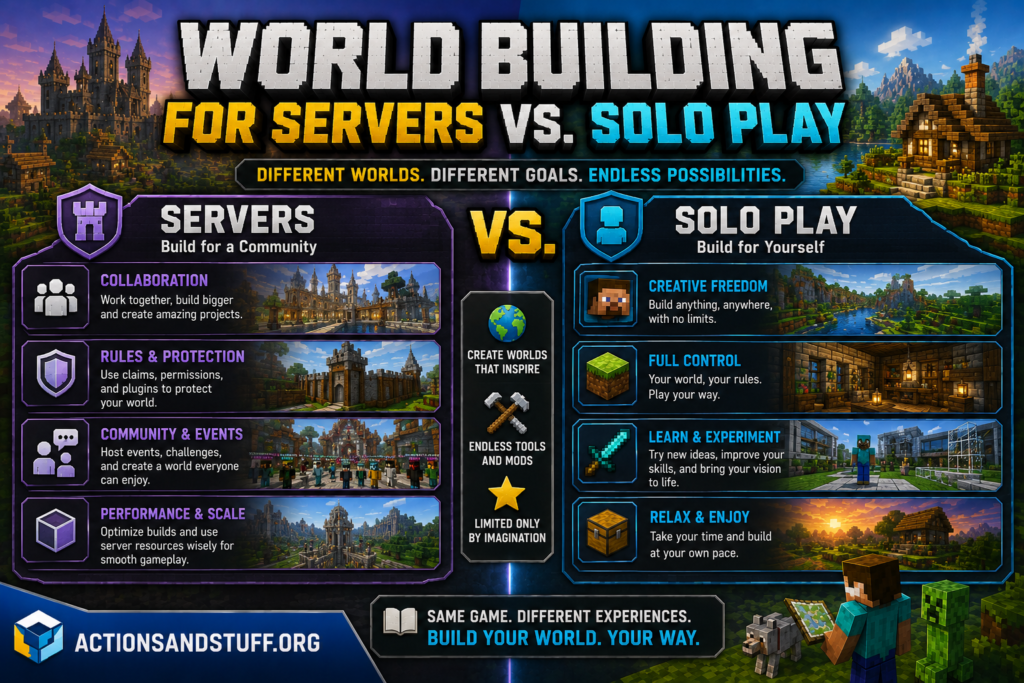
The right toolkit changes depending on whether you’re building alone or coordinating with a team.
Solo builders generally get the most value from visual, low-friction tools. Axiom’s brush system and WorldPainter’s paint-style workflow let one person move quickly without needing to memorize a command syntax, since there’s no one else to coordinate permissions with.
Server admins and teams tend to lean on WorldEdit specifically because it’s scriptable, permission-gated, and has years of plugin integrations behind it. On a server, you can restrict WorldEdit access to trusted builders, log every command for accountability, and undo mistakes instantly with //undo — something that matters a lot more when multiple people are editing shared terrain.
If you’re running a public Realm or SMP server, combining the /worldbuilder command (to lock terrain for regular players) with WorldEdit access for a small trusted team is a common and effective setup: everyone can enjoy the world, but only vetted builders can reshape it.
A Brief History of World-Building Tools in Minecraft
World-building tools didn’t start out anywhere near as polished as Axiom or the Marketplace add-ons available today. WorldEdit, originally created by sk89q, dates back to some of Minecraft’s earliest server-plugin days and set the template that almost every later tool has followed: select a region, then apply an operation to it. VoxelSniper arrived around the same era, focused specifically on natural terrain sculpting rather than block-perfect construction.
For years, anyone wanting a true “painted landscape” had to rely on external programs, which is where WorldPainter carved out its niche — it remains one of the only tools that lets you shape an entire world’s geography before a single chunk is ever generated in-game.
The more recent wave, led by tools like Axiom, reflects a broader shift toward visual, GUI-driven editing rather than command memorization. Bedrock’s Marketplace add-ons follow a similar philosophy, trading some of the raw power of command-line tools for an interface anyone can pick up in minutes. That trend is likely to continue as more builders — especially newer or younger players — expect in-game menus over typed syntax.
Frequently Asked Questions
How do I become a “World Builder” in Minecraft? If you mean the Bedrock command, run /worldbuilder @s with cheats enabled to grant yourself build access in a locked world. If you mean the general skill, start with vanilla building fundamentals, then add tools like WorldEdit or Axiom once you’re comfortable with the basics.
Is the World Builder mod/add-on safe to download? Only download from official sources — the Minecraft Marketplace for Bedrock, or Modrinth/CurseForge for Java mods. Avoid third-party sites offering direct .mcaddon or .jar downloads outside these platforms.
Does World Builder work in survival mode? The /worldbuilder command works in any game mode as long as cheats are enabled. Most terrain-editing mods like WorldEdit and Axiom are intended for creative mode, but survival-friendly alternatives like Building Gadgets are built specifically to respect survival rules.
What’s the difference between WorldEdit and a World Builder add-on? WorldEdit is a Java-only mod controlled through commands, offering far more precision and power. World Builder add-ons are Bedrock-compatible and use in-game items or menus instead of typed commands, trading some power for accessibility.
Will building mods disable achievements? On Java, client-side decoration mods generally don’t affect achievements, but commands from tools like WorldEdit typically do, since they alter the world outside normal gameplay rules. Check each mod’s documentation if achievement progress matters to you.
Can I use World Builder tools on a Realm or public server? The /worldbuilder command requires operator-level cheat access, so it depends on whether the server owner enables cheats. Mods like WorldEdit are usually installed server-side by the admin, not by individual players.
Common Mistakes New World Builders Make
Even with the right tools installed, a few habits consistently hold builders back:
- Installing too many mods at once. Stacking five different building mods before you’ve learned any of them well leads to conflicts, crashes, and a cluttered workflow. Start with one core tool — WorldEdit or Axiom — and add specialty mods later as you actually need them.
- Skipping the undo history. WorldEdit’s
//undoand Axiom’s history panel exist for a reason. Large terrain edits are hard to eyeball correctly on the first try, and testing an operation, undoing it, and adjusting is faster than manually fixing a bad edit block by block. - Ignoring version compatibility. A mod built for one Minecraft version frequently breaks on another, especially after major updates. Always confirm the mod page lists your exact version before downloading.
- Building without reference material. Even experienced builders lean on real-world photos, concept art, or existing schematics for proportion and detail. Working from memory alone usually produces flatter, less convincing structures.
- Neglecting the surrounding landscape. A technically impressive build can still look unfinished if the terrain around it wasn’t touched. Spend time on paths, vegetation, and terrain blending — not just the structure itself.
Avoiding these few pitfalls will do more for your builds than any single mod ever will.
conclusion
“World Builder” in Minecraft isn’t one single thing — it’s a command, a Marketplace add-on, and an entire category of Java mods, all pointing at the same goal: giving you more control over the worlds you create. If you’re on Bedrock, start with the /worldbuilder command for access control and look into Marketplace add-ons for extra building tools. If you’re on Java, WorldEdit and Axiom will cover almost everything you need, with WorldPainter as the go-to option when you want to design a landscape from scratch before you ever load it in-game.
Whichever tools you choose, the same principle applies: the best world builders aren’t the ones with the most mods installed — they’re the ones who plan, stay consistent, and use the right tool for the job in front of them.