
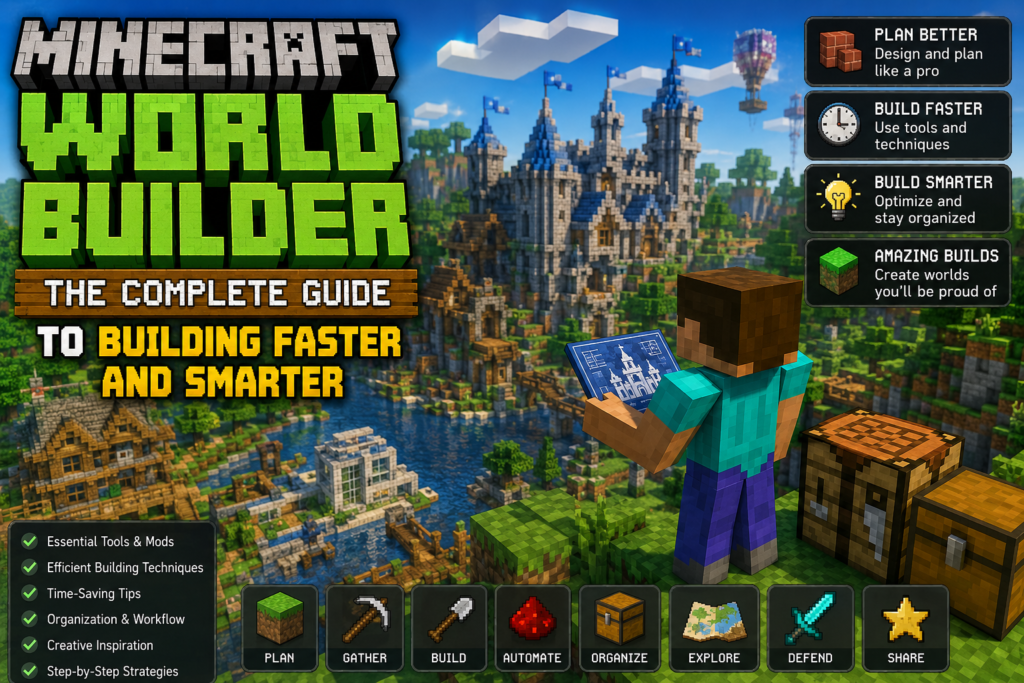
Anyone who has spent hours placing blocks one at a time in vanilla Minecraft knows the feeling — you have a huge idea in your head, but building it block by block takes forever. That exact problem is why “Minecraft World Builder” tools have become some of the most searched terms in the entire building and creative community.
The tricky part is that “World Builder” actually refers to a few different things depending on what platform you play on and what you are trying to do. This guide covers all of them clearly, but focuses mainly on the most popular one — the World Builder Add-On by Oreville Studios, currently one of the highest-rated building tools on the Minecraft Bedrock Marketplace — while also explaining the built-in /worldbuilder command, the official Minecraft Editor tool, and Java Edition’s WorldEdit, so you land on the right tool for what you actually need.
What Is the World Builder Add-On?
The World Builder Add-On is a Minecraft Bedrock Marketplace add-on created by Oreville Studios that turns Minecraft’s normal one-block-at-a-time building process into a full editing toolkit. Instead of placing blocks individually, you get a dedicated in-game Toolbox filled with tools that let you select, copy, cut, paste, move, stack, rotate, flip, and paint entire sections of your world at once.
It has become one of the most popular building add-ons on the Marketplace, holding a strong 4.3-star average rating from thousands of players. Unlike a texture or animation pack, this add-on is a genuine gameplay tool — it does not change how the world looks, it changes how fast and precisely you can build in it.
You get access to the toolkit through an in-game handbook. Pressing the Give Toolbox button inside the World Builder Handbook grants you the Toolbox item, and opening that Toolbox reveals every tool included in the add-on.
Why Players Reach for a World Builder Tool
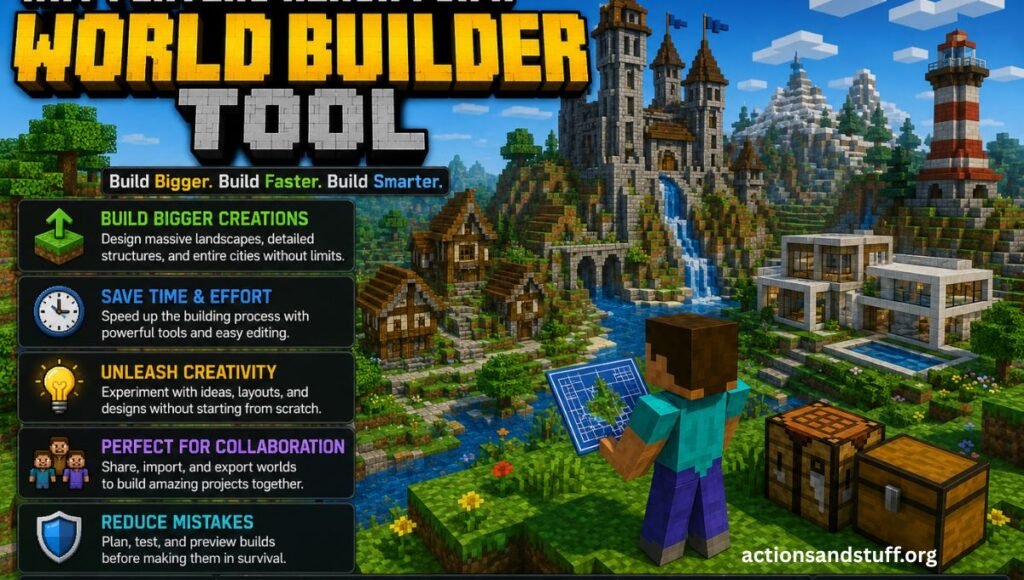
Vanilla Minecraft was never designed for large-scale construction. Placing a single flat platform of a few hundred blocks, digging out a large basement, or duplicating a structure across a map all require repetitive, manual work that can take a very long time, even for experienced players.
On Java Edition, the community solved this years ago with WorldEdit, a plugin and mod that lets players select large regions and apply bulk operations to them. Bedrock Edition never had a built-in equivalent until add-ons like World Builder arrived, giving Bedrock players the same kind of selection-and-edit workflow that Java builders have relied on for a long time.
This is exactly the gap the World Builder Add-On fills. It brings region-based editing directly into Bedrock Edition, without requiring a server, a plugin, or any external software — everything runs from a single Marketplace add-on inside the game you already own.
Core Features of the World Builder Toolbox
Selection Tools
Selection is the foundation of the entire add-on. Instead of targeting one block, you mark two corners of an area to define a selection box, which every other tool in the kit then works from. A smooth selection tool is also included for defining more natural, non-rectangular shapes rather than being locked into strict boxes.
Copy, Cut, and Paste
Once you have a selection, you can copy or cut it and paste the result anywhere else in your world. This is the single feature that saves the most time — duplicating a house design across a village, moving an entire structure without rebuilding it, or cutting out a section of terrain to reposition it elsewhere all become a matter of a few actions instead of hours of manual replacement.
Rotate and Flip
Pasted selections can be rotated in fixed increments or flipped along an axis, which is especially useful for symmetrical builds. Instead of manually mirroring a design block by block, you build one half and let the tool generate the matching side.
Custom Brushes
Brushes let you paint with blocks across a wider area at once, similar to a digital art brush but applied to terrain. This is particularly useful for landscaping work like spreading grass, sand, or snow naturally across uneven ground instead of placing each block individually.
Terrain Painting Tools
Beyond brushes, dedicated terrain tools let you reshape land directly — raising or lowering elevation, smoothing rough terrain, and blending between different block types so transitions look natural rather than sharply cut.
Cone, Curve, and Shape Draw Tools
Newer versions of the add-on introduced draw tools for specific geometric shapes, including cones and curves, which are notoriously tedious to build manually in a voxel-based game. These tools generate the shape automatically based on your selection parameters.
Blob Brush
The blob brush creates organic, rounded clusters of blocks rather than strict geometric shapes, which is useful for things like boulders, foliage clumps, or naturalistic terrain features that would otherwise look too uniform if built with standard tools.
Scale Tool
The scale tool resizes an existing selection, letting you shrink or enlarge a structure without manually rebuilding it at a different size — useful for adjusting a design to fit a new location without starting over.
Trays System
A more recent addition, the Trays system, works as extra internal storage inside the Toolbox itself, letting you keep several saved selections or presets ready to use without losing your current clipboard contents. This makes it much easier to work on multiple parts of a large project without repeatedly re-selecting the same areas.
Undo and Redo
Every action performed with the Toolbox can be undone or redone, which matters enormously once you are editing large sections of terrain rather than individual blocks. A single mistaken paste or terrain edit can be reversed instantly instead of requiring manual repair.
World Builder vs Vanilla Building
| Task | Vanilla Minecraft | World Builder Add-On |
|---|---|---|
| Duplicating a structure | Manually rebuild block by block | Copy and paste instantly |
| Mirroring a design | Manually place mirrored blocks | Flip tool generates the mirror |
| Flattening large terrain | Break/place blocks one at a time | Brush or terrain tool applies instantly |
| Building curves or cones | Extremely tedious manual placement | Dedicated shape draw tools |
| Fixing a mistake across a large area | Manually undo each placed block | One-click undo/redo |
| Resizing a build | Rebuild from scratch at new scale | Scale tool adjusts automatically |
| Natural-looking terrain blending | Manual block-by-block transitions | Blob brush and terrain painting tools |
Compatibility With Custom Blocks and Other Add-Ons
A common question is whether World Builder works alongside other add-ons and custom content packs. It does — the copy, paste, and other editing tools work on custom blocks from other add-ons just as they do on vanilla blocks, so it can be layered into an existing modded world rather than requiring a fresh, vanilla-only save.
If a tool appears to do nothing when used, the most common cause is an active mask setting, which limits which blocks a tool affects. Clearing the mask through the dedicated Clear Mask option in the Toolbox typically resolves this.
Pricing and How to Get It
The World Builder Add-On is a paid Marketplace add-on, currently priced at 990 Minecoins. It is available directly through the in-game Minecraft Marketplace on Bedrock Edition, searchable under Oreville Studios. Buying it through the official Marketplace is the safest route, since it guarantees you are getting a verified, unmodified version that updates automatically alongside new Minecraft releases, rather than a third-party file of uncertain origin from an external website.
Because it is Marketplace-verified content, it works the same way across every platform Bedrock Edition supports — Android, iOS, Windows, Xbox, PlayStation, and Nintendo Switch — without needing a separate purchase per platform if you are using a linked Microsoft account.
Does It Work on Realms and Multiplayer?
Yes. Once purchased and added to a world, the Toolbox and its tools function the same way in multiplayer and Realms as they do in single-player, since the add-on operates through standard Minecraft behavior pack systems rather than anything server-side. For a shared Realm, the world owner typically needs to add the add-on through the Realm’s content settings so it is available to everyone joining that world.
Other Meanings of “World Builder” in Minecraft
Because the phrase is used in a few different contexts, it is worth clarifying the alternatives in case you were looking for one of these instead.
The /worldbuilder Command
Minecraft has a built-in game command called /worldbuilder, most commonly used in Minecraft Education Edition and Bedrock Edition. Running this command toggles a player’s World Builder status, which determines whether that player is allowed to place and break blocks regardless of the world’s immutableworld game rule setting. It is mainly used by teachers and world administrators to control who can and cannot modify a world, rather than being a building tool in itself. This command requires cheats to be enabled and is unrelated to the Oreville Studios add-on described above.
Minecraft Editor (Official Creator Tool)
Mojang also offers an official tool simply called Editor, available through Creator Tools in the Minecraft Launcher on Bedrock. It provides multiblock editing features such as selecting, cloning, and moving parts of a world in real time, aimed primarily at creators building maps and content at scale. It is a separate, officially built system rather than a Marketplace add-on, and is accessed through a dedicated Editor mode rather than an in-game item.
WorldEdit (Java Edition)
On Java Edition, the closest equivalent is WorldEdit, a long-established plugin and mod that Java server admins and builders have used for years to select regions and perform bulk editing operations through chat commands. It works differently from the Bedrock add-on described in this guide, since it typically requires a Forge or Fabric mod installation, or a plugin on a Java server, rather than a Marketplace purchase.
WorldPainter (External Map Generator)
For players working on terrain generation outside of the live game, WorldPainter is a separate, free desktop application for Java Edition that works like a painting program for landscapes, letting you sculpt terrain, add biomes, and export the result as a playable Minecraft world. It is unrelated to in-game building add-ons and is used before a world is played rather than during regular gameplay.
Who Actually Needs a Tool Like This
Not every Minecraft player needs a full editing toolkit, so it helps to think about whether your building style actually benefits from one before spending Minecoins on it.
Casual survival players who mostly build small houses or simple bases may not notice much difference, since vanilla placement is usually fast enough for small-scale projects. Creative-mode builders working on large structures, however, tend to benefit enormously, since even a modestly sized build can involve thousands of individual block placements that a copy-paste or brush tool collapses into seconds.
Map makers and content creators are typically where a tool like this pays for itself fastest. Building custom maps, adventure worlds, or server spawns almost always involves repeating structures, terraforming large areas, or adjusting scale after the fact — all tasks that are painful without region-based editing and comparatively quick with it.
Redstone engineers also benefit in a less obvious way. Complex redstone contraptions often need to be duplicated, mirrored, or moved slightly during testing, and manually rebuilding a working mechanism risks breaking it. Copy-paste tools let you relocate or duplicate a tested design without touching the original.
A Brief Look at Oreville Studios and the Add-On’s Development
Oreville Studios has built a reputation on the Bedrock Marketplace as a creator studio focused on tools that expand what players can do inside vanilla-compatible Minecraft, rather than purely cosmetic content. World Builder has gone through several numbered updates since its original release, each one adding new tools rather than simply patching bugs — the progression from basic copy/paste functionality to more advanced features like the blob brush, scale tool, and Trays storage system shows a pattern of the add-on growing based on what builders actually asked for.
This kind of ongoing support matters more for a tool add-on than it does for a purely visual pack, since builders tend to run into edge cases — unusual block types, large-scale terrain edits, specific shapes — that only get addressed through continued updates. The add-on’s sustained rating above 4 stars across thousands of reviews suggests that update pattern has held up well over time rather than losing momentum after its initial release.
Common Use Cases Where World Builder Saves the Most Time
Certain building tasks see a dramatically bigger time savings than others, which is worth knowing before you decide how much of your workflow to rebuild around the Toolbox.
- Village and settlement building — placing multiple similar houses across a map is one of the clearest copy-paste use cases, since one finished structure can be duplicated repeatedly with small variations instead of rebuilt from scratch each time.
- Terraforming for builds — flattening a hillside, digging a foundation, or blending a build into natural terrain is far faster with brush and terrain tools than manual block breaking.
- Symmetrical architecture — castles, temples, and other builds relying on mirrored halves benefit directly from the flip tool, cutting the actual building work roughly in half.
- Large biome or landscape edits — reshaping big sections of terrain for aesthetic or gameplay reasons is one of the most time-consuming vanilla tasks, and one of the biggest time savings once brush and paint tools are involved.
- Fixing large-scale mistakes — a bad terrain edit or accidental paste across a large area is trivial to reverse with undo, compared to the extensive manual repair vanilla building would require.
Tips for Getting the Most Out of a World Builder Toolkit
- Learn the selection tool first. Every other feature in the Toolbox depends on having an accurate selection, so getting comfortable with corner-setting and the smooth selection tool early makes everything else faster.
- Use masks intentionally. If a brush or paint tool seems to do nothing, check whether a mask is limiting which blocks it can affect before assuming something is broken.
- Save presets with the Trays system if you are working on a large build across multiple sessions, so you are not re-selecting the same references repeatedly.
- Combine flip and rotate for symmetry. Building one half of a symmetrical structure and mirroring it saves significant time compared to manually matching both sides.
- Undo liberally while experimenting. Since large edits are just as easy to reverse as small ones, it is worth testing bold changes rather than second-guessing every terrain edit before committing to it.
Pros and Cons
Pros
- Brings Java-style region editing (copy, paste, rotate, flip) to Bedrock Edition
- Works with custom blocks from other add-ons, not just vanilla content
- Regularly updated with new tools like shape draw tools, blob brush, and the Trays system
- Functions the same across Android, iOS, Windows, Xbox, PlayStation, and Switch
- Works in both single-player and multiplayer/Realms
- Full undo/redo support reduces the risk of large-scale mistakes
Cons
- It is a paid add-on (990 Minecoins), unlike some free community alternatives
- Requires purchasing through the Marketplace tied to your Microsoft account
- Mask settings can confuse new users if a tool appears to not be working
- Not compatible with Java Edition — Java players need WorldEdit instead
- Some advanced tools have a learning curve compared to vanilla building
Frequently Asked Questions
Is World Builder the same as WorldEdit? They serve a similar purpose — bulk region editing — but they are different tools built for different platforms. World Builder is a Marketplace add-on for Bedrock Edition, while WorldEdit is a mod/plugin built for Java Edition.
Does World Builder work with custom blocks from other add-ons? Yes. Copy, paste, and other tools function on custom blocks the same way they do on vanilla blocks.
Why isn’t a tool doing anything when I use it? This usually means a mask is active, limiting which blocks the tool can affect. Clear the mask using the Clear Mask option in the Toolbox.
Is the add-on free? No, it is a paid Marketplace add-on priced at 990 Minecoins.
Does it work on console platforms? Yes, it works across Xbox, PlayStation, Nintendo Switch, and PC in addition to mobile, since it is distributed through the standard Minecraft Marketplace.
Can I use it on a Realm with friends? Yes, as long as the Realm owner adds the add-on to the world so it is available to everyone who joins.
Is this the same as the /worldbuilder command? No. The /worldbuilder command is a built-in Minecraft command that toggles whether a player can place or break blocks, mainly used in Education Edition. It has no relation to the Oreville Studios add-on.
Does the add-on update automatically? Yes, as long as it was purchased through the official Marketplace, updates install alongside your normal Minecraft updates.
Do I need experimental features turned on to use it? Some Bedrock add-ons that rely on newer scripting features require experimental toggles to be enabled in world settings before creating or loading a world. Check the add-on’s in-game handbook or the Marketplace listing notes for the specific version you own, since requirements can shift slightly between updates.
Will it slow down my world or cause lag? For most builds, performance impact is minimal since the tools are simply placing and removing blocks faster than you could manually, rather than running anything constantly in the background. Extremely large paste operations covering thousands of blocks at once may cause a brief pause while the world processes the change, which is normal and temporary.
Final Thoughts
Whether you are duplicating a village across a large map, reshaping terrain to fit a build, or simply tired of placing thousands of blocks by hand, a proper world builder toolkit turns Minecraft’s biggest creative bottleneck into a non-issue. For Bedrock players specifically, the World Builder Add-On by Oreville Studios is currently the most complete, actively updated option available through the official Marketplace, bringing the kind of selection-based editing that Java builders have relied on for years directly into Bedrock Edition.
If your goal is large-scale building rather than a small visual tweak, investing in a proper toolkit like this one pays for itself the first time you copy-paste a structure instead of rebuilding it from scratch.